- Prereq Expectations
- 295 Machines
- SSH AND RDP WITH VPN
- Finding linux machines
- VSCODE CSIL WITHOUT VPN
- VSCODE CSIL WITH VPN
- VM
- Modules
- Linux Cheats
- C tools
Prereq Expectations
295 is an intensive course. We do try to administer the prerequisites in Week 1 and 2,
that should have been taught by previous courses. If you find this material and Assignment 1 even a little uncomfortable
then we strongly encourage you to consider taking this course in a different term once you have built up
the required prerequisites.
Either MACM 101, and CMPT 125 or CMPT 130/135. or MATH 151 and CMPT 102 for students in an Applied Physics program, all with a minimum grade of C-. Please see here for prerequisites we expect you to know from prior courses:
As outlined above we expect prior courses to administer the requisite C or C++ knowledge with experience in working with linux terminal/shell. If you do not have this experience; please head to the tutorials page and follow the tutorials, and self-learn using the videos we post and recommend. All assignments and lab in this course are administered through the linux environment and assume you have the prerequisites.
WARNING: We have minimal TA support (~50 students/TA) and do not
have resources to be imparting prerequisites that should have been taught in
previous courses.
If you are not comfortable working with C/C++ and linux terminal then you do not have
the prereqs (irrespective of your grade in the prior course), please talk to an academic advisor
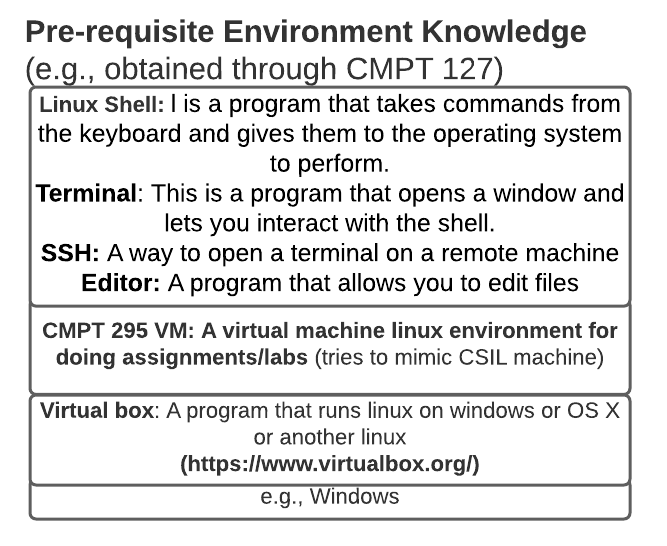
Solid programming skills (C). Working at shell/terminal in unix/linux.
295 Machines
Executable Environment. For this C homework, the executables needs to run on a course machine. In particular, you will need to compile your source by either using the VM provided or CSIL machine. CSIL machines can be accessed either using RDP or ssh.
WARNING: Pre-requistes and 125/135 should have taught how to work with CSIL and Linux
If not, read tutorials, watch videos below and self-learn.
We will not be responding to ssh or csil access questions
WARNING: As SFU has migrated to VPN, the instructions may be updated.
THE CMPT 295 STAFF DO NOT CONTROL RDPing or SSHing to CSIL
ALL CMPT 295 ASSIGNMENTS/LABS CAN BE COMPLETED USING THE VM BELOW
IF YOU HAVE ANY QUESTIONS ABOUT CONNECTING TO CSIL
PLEASE CONTACT THE DEPARTMENT TECH STAFF helpdesk@cs.sfu.ca
RDP Access
- To RDP you need to find list of machines that are running linux. Not all are available. Follow instructions here. Instruction are listed here:
- RDP with VPN.
You will be connecting into linux machineWE DO NOT SUPPORT WINDOWSRDP without VPN IS NOT SUPPORTEDYour mileage may vary for copy paste
After you have remote desktop. Open Applications>Utilities>Terminal You can SSH or complete assignment tasks from terminal
SSH WITHOUT VPN
WARNING: You have to first ssh using instructions below to connect to a gateway server
If unable to connect to gateway that means SFU has
blocked access. Please contact helpdesk@cs.sfu.ca.
The SSH command will be like this:
$ ssh -p 24 [CSIL ID]@gateway.csil.sfu.ca
# This will prompt for password and OTP (one time password)
# For password use your csil/sfu password
# For OTP use MFA set up above
# On gateway
$ ssh -p 24 [CSIL ID]@asb9700u-b01.csil.sfu.ca
# If the machines have not been booted to linux, this command will timeout.
# To check which machines in CSIL have booted into linux see below.
- Available Servers
-
Unselect MAC and Windows. Only have linux selected.
WARNING: DO NOT USE Connect Link - If you have sfu vpn you can skip the changes to the ssh/config file.
- WE DO NOT MAINTAIN SFU VPN. For any questions please contact SFU ITS or helpdesk@cs.sfu.ca
# To directly access asb machine from your desktop/laptop. Add the following to your ~/.ssh/config file on your desktop/laptop.
# If you do not have it, create one.

# PASTE THIS INTO YOUR MAC/linux/WSL desktop laptop if you have not set up sfu vpn
Host csil-bounce
HostName gateway.csil.sfu.ca
User [CSIL ID]
ServerAliveInterval 120
Port 24

Host a*.csil.sfu.ca
User [CSIL ID]
ProxyCommand ssh csil-bounce nc %h 24

Host cs-srye*.cs.surrey.sfu.ca
User [CSIL ID]
ProxyCommand ssh csil-bounce nc %h 24

# Now you can ssh directly to csil machine
# with the gateway implicitly forwarding connections.
$ ssh asb9700u-a02.csil.sfu.ca
SSH AND RDP WITH VPN
- Step 0: Setup MFA.
- Step 1: Set up VPN
- Step 2: Connect VPN
- Step 3: SSH. With VPN you can ssh directly without gateway.
$ ssh asb9700u-j08.csil.sfu.ca -p 24
Finding linux machines
To work remotely with CSIL you need to find linux machines.
-
Option 1 Typically these are listed [here]- List of CSIL machines If that page is down or is not working for you. Then you can use the option below
-
Option 2 First follow steps in SSH to ensure you can ssh to gateway SSH.
$ ssh -p 24 [CSIL ID]@gateway.csil.sfu.ca
# On gateway
cs-accessed$ wget "https://www.cs.sfu.ca/~ashriram/Courses/CS295/assets/distrib/csil-linux.py"
cs-accessed$ python3 csil-linux.py
# e.g., You will get a dump of machine names.
# The names below will vary each time you run it.
asb10928-d06.csil.sfu.ca
asb10928-e02.csil.sfu.ca
asb10928-e03.csil.sfu.ca
asb10928-e04.csil.sfu.ca
asb10928-e05.csil.sfu.ca
asb10928-e06.csil.sfu.ca
asb10928-e07.csil.sfu.ca
cs-srye4013ua02.cs.surrey.sfu.ca
cs-srye4013ua04.cs.surrey.sfu.ca
cs-srye4013ua08.cs.surrey.sfu.ca
cs-srye4013ua10.cs.surrey.sfu.ca
cs-srye4013ub01.cs.surrey.sfu.ca
cs-srye4013ub02.cs.surrey.sfu.ca
cs-srye4013ub03.cs.surrey.sfu.ca
WARNING 1: If you are accessing remotely someone sitting physically at the linux machine could reboot it i.e., save early and often
WARNING 2: The machines can be sshed into does not mean that they support RDP. This depends on sfu. If you encounter trouble for RDPing mail helpdesk@cs.sfu.ca
VSCODE CSIL WITHOUT VPN
Warning: Instructions in this section are for self learning
They are provided here without any additional support
We will not respond to any questions on piazza
Warning: We do not recommend working without VM
OR sshing into CSIL
Overview. We will be tunnelling our edits to files and commands over ssh in particular over remote ssh extension under vscode. Figure below provides an overview. This permits us to locally run the vscode editor (on your laptop) while editing files on remote csil machines and running commands remotely on linux.
- Step 1: Install VScode
- VSCODE
- Installing extensions
- Install the following extensions C++, RISC-V Emulator, RISC-V,Remote SSH
VSCODE CSIL WITH VPN
- Install VScode
- VSCODE
- Installing extensions
- Install the following extensions C++, RISC-V Emulator, RISC-V,Remote SSH
- Make sure you can ssh with VPN
- Make sure you can find the list of linux machines
- Connect to VPN.
VM
WARNING: WE ONLY PROVIDE THE VM.
SETTING IT UP ON YOUR LAPTOP/DESKTOP IS YOUR RESPONSIBILITY
STAFF WILL NOT PROVIDE INDIVIDUAL TECH SUPPORT
PLEASE REFER TO OUR LINKS/VIDEO BELOW FOR GUIDANCE
If you have trouble with VM, use the CSIL instructions
We have created a CMPT 295 VM that comes preinstalled with Ubuntu 18.04 Bionic Beaver and many of the tools preinstalled. Download and install latest virtual Box. Last checked on version 6.1.22 Download and install latest extension pack
WE DO NOT SUPPORT M1 MACs, Chromebooks or ARM-based macs, Macbook air; Please use CSIL-
Mac OS ErrorsResolve Mac OS issues Settings>Privacy>General>Allow -
AMD Laptop errorsEnable virtualization - Download VM
- Download CMPT295.vmdk and CMPT295.vbox (
WARNING: NOT U20)
- Download CMPT295.vmdk and CMPT295.vbox (
- Follow steps here
You can ssh into the VM from your machine. Port 2222 on the host machine maps to port 22 on VM.
ssh -p 2222 vagrant@localhost (username: vagrant password: vagrant)
Modules
CMPT 295 relies on a set of customized compilers and software. We uses modules to manage the user environment for different third-party software versions. The advantage of the modules approach is that the user is no longer required to explicitly specify paths for different executable versions. ON VMs
These come preinstalled.
On CSIL. If RDPed. Open Applications>Utilities>Terminal
$ module avail
# Step 1: If it says module command not found. If found, goto Step 2.
$ export LD_LIBRARY_PATH=/usr/shared/CMPT/courses/cmpt295/tcl/lib:$LD_LIBRARY_PATH
$ source /usr/shared/CMPT/courses/cmpt295/modules/Modules/3.2.10/init/bash
$ module avail
# If you see some Tclerror etc. Then you have not set the LD_LIBRARY_PATH
# Step 2
$ module load cmpt295/cgdb
$ module load valgrind
$ module load cmpt295/riscv
# If shell does not say (base).. you also need to load conda
$  . "/usr/shared/CMPT/courses/cmpt295/miniconda3/etc/profile.d/conda.sh"
$ conda activate
Alternative if your are not able to get above steps working
# Add this to your .bashrc if you want to automatically have cgdb loaded each time.
export PATH=/usr/shared/CMPT/courses/cmpt295/cgdb/bin:$PATH
export PATH=/usr/shared/CMPT/courses/cmpt295/valgrind/bin:$PATH
On CSIL. If in SSH Terminal
If you see errors such as cgdb not found
If logged into CSIL. You need to do this everytime you log in to CSIL.
If you do not want to. Add the following commands below to your .bashrc or .zshrc found in your home directory ~/ .
# Step 1: If it says module command not found. If found, goto Step 2.
$ export LD_LIBRARY_PATH=/usr/shared/CMPT/courses/cmpt295/tcl/lib:$LD_LIBRARY_PATH
$ source /usr/shared/CMPT/courses/cmpt295/modules/Modules/3.2.10/init/bash
$ module avail
# If you see some Tclerror etc. Then you have not set the LD_LIBRARY_PATH
# Step 2
# Load compilers
$ module load cmpt295/cgdb
$ module load cmpt295/valgrind
$ module load cmpt295/riscv
# Load the appropriate python3 version. This important for Assignment 4 and 6.
# The . below is important. It IS NOT A TYPO
$  . "/usr/shared/CMPT/courses/cmpt295/miniconda3/etc/profile.d/conda.sh"
# Load the grading scripts
$ conda activate
# Following this your shell should change to (base)....
# If not, then you do not have access to the grading scripts

# Do not add above line to your .bashrc. Simply type conda activate
# If it says conda not found then re-run the last step
#  . "/usr/shared/CMPT/courses/cmpt295/miniconda3/etc/profile.d/conda.sh"
If on VM. We preload the software.
$ module avail
# If on VM you do not need to do anything.
## VM
# Your shell should say (base).....
# If module avail says command not found
# then you are most likely in the wrong shell/terminal
Linux Cheats
Your home directory is shared between the CPU servers, so you can copy files to or from there by connecting to one of the CPU servers. The files will be available on the workstations. Copying files to CSIL will be something like:
scp -P24 filename USERNAME@csil-cpu1.csil.sfu.ca:
And back from CSIL:
scp -P24 USERNAME@csil-cpu1.csil.sfu.ca:filename .
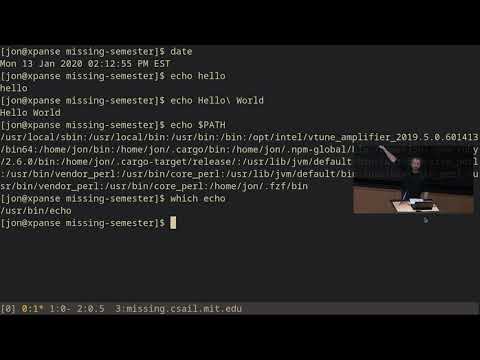
Linux interaction

Recommended Editors
These assignments may need you to navigate through multiple source files. If you do not have a favorite editor then I would highly recommend the following.
- vscode, installed in your VM. You need an RDP session or VM. It will not work within a terminal.
You can pull up vscode by typing code in your terminal(VM or RDP-only) - [emacs] is already installed in CSIL and VM.
- Cheats emacs
C tools
- Essential C
- Cheats C
- C Tutor. A tool to visualize the memory layout and objects in C programs.
- Repl.it. To try programs without installing compiler etc on your local machine.
- Valgrind You should use valgrind to check your code for memory leaks.
- gdb
- valgrind
$ valgrind -q --leak-check=full ./main
When validating memory leaks, make sure you’re using valgrind to verify that there are no leaks. However, if you’re struggling to figure out the output from valgrind or other errors in your code. We may include another tool on the VM called scan-build (Clang static analyzer). To run this, call (scan-build -k -V ./main). It will generate an HTML page that will show existing issues in the code if it can detect some. This tool will not detect all the same issues though that valgrind will, so you cannot rely on it as proof of no leaks in your code.